Route Planner Process
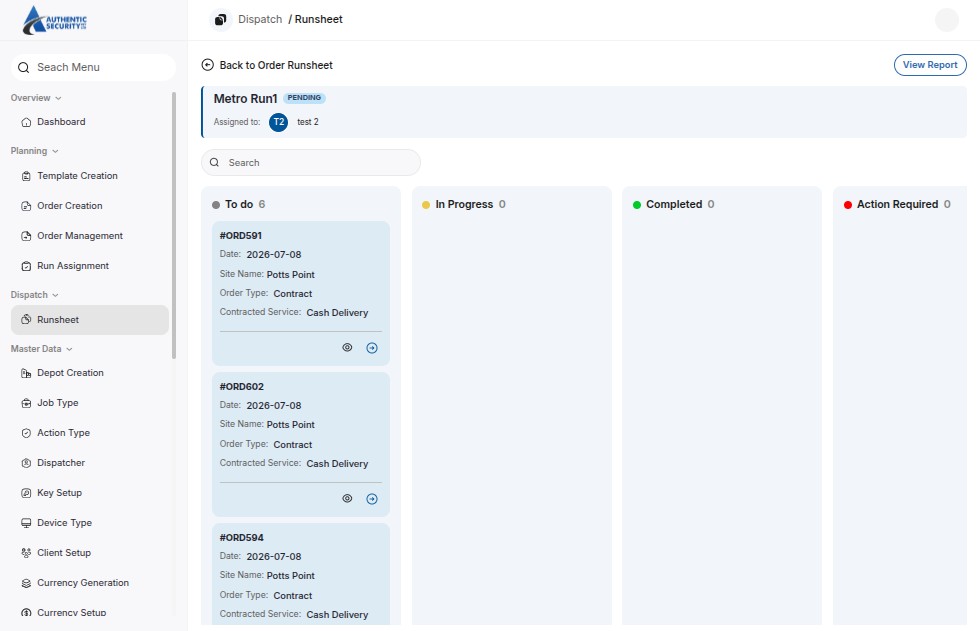
Once the cash is packed, the Route Planner assigns the order to a delivery run and creates a runsheet for the crew.
Step 1: Open Order Management
Log in as Route Planner and open Order Management.
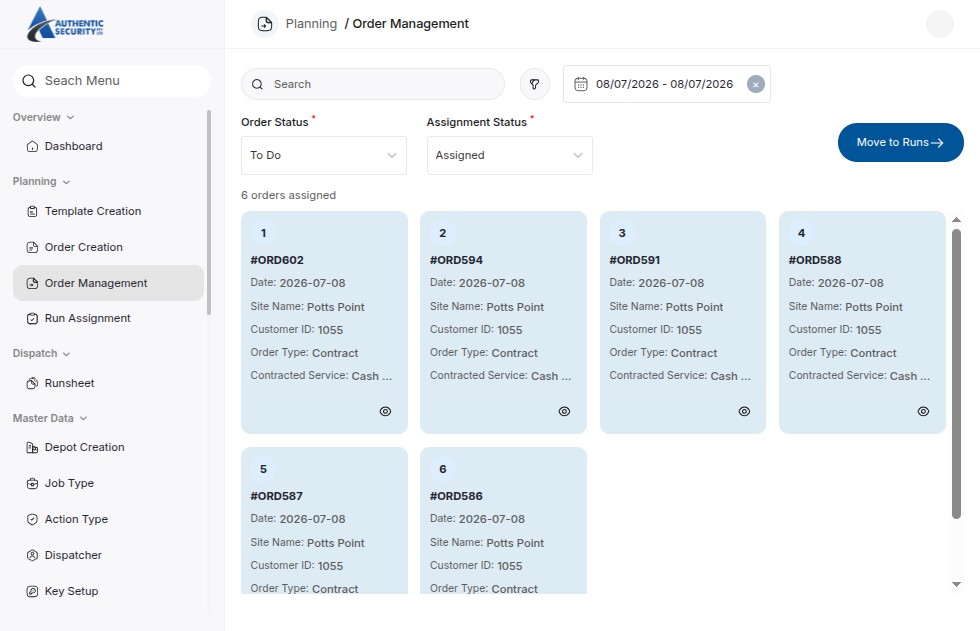
Step 2: Move the Order to Runs
Move the order to Runs.
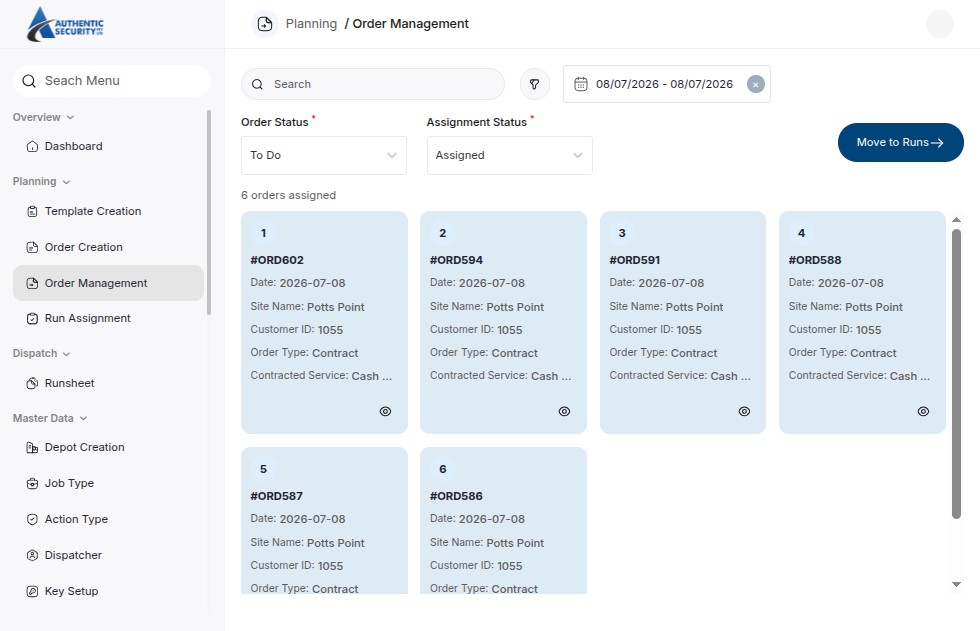
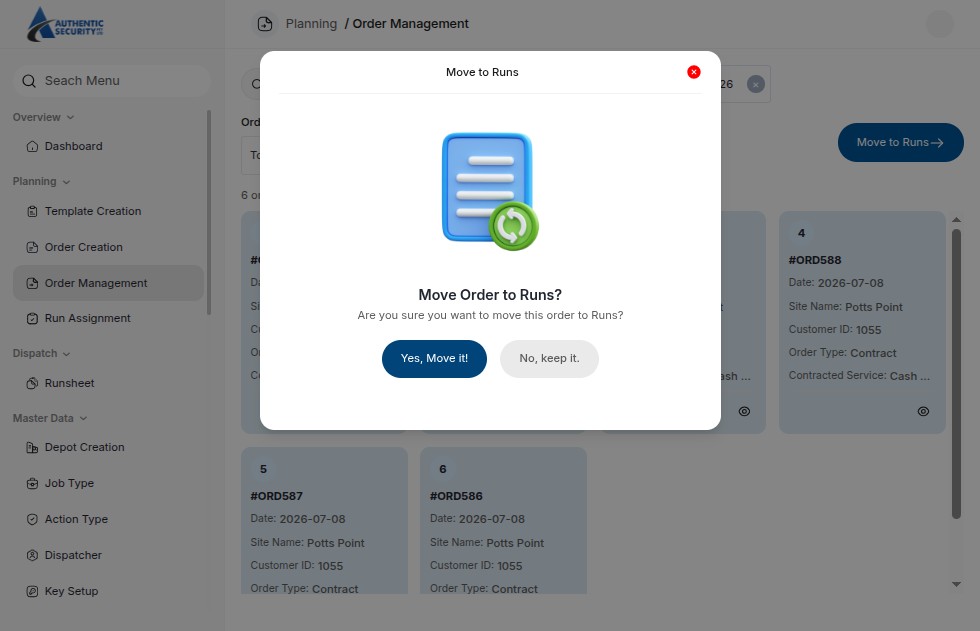
Step 3: Confirm the Move
Confirm the action to move the order.
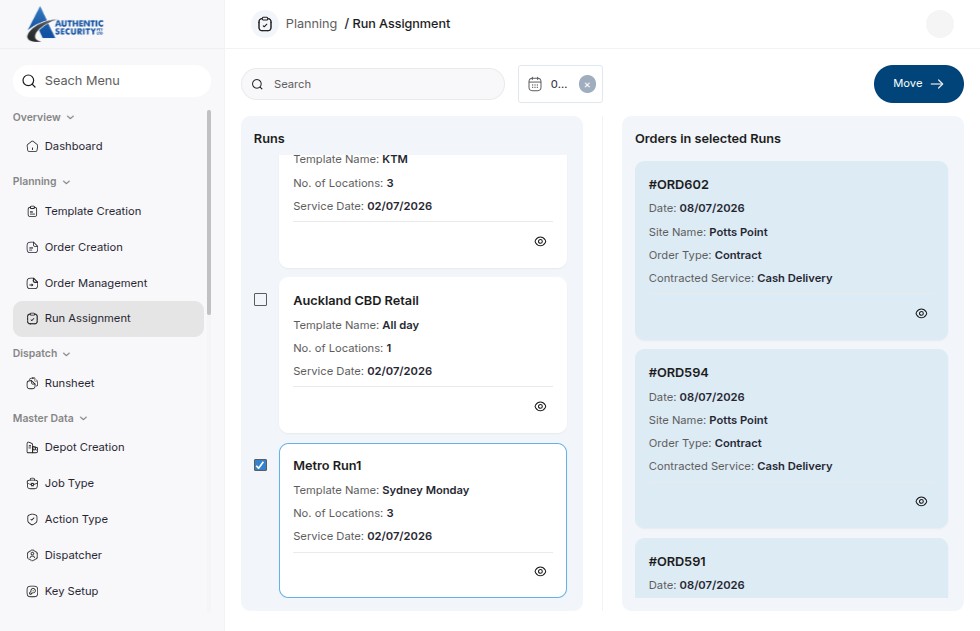
Step 4: Open Run Assignment
Open Run Assignment and choose the run this order belongs to.
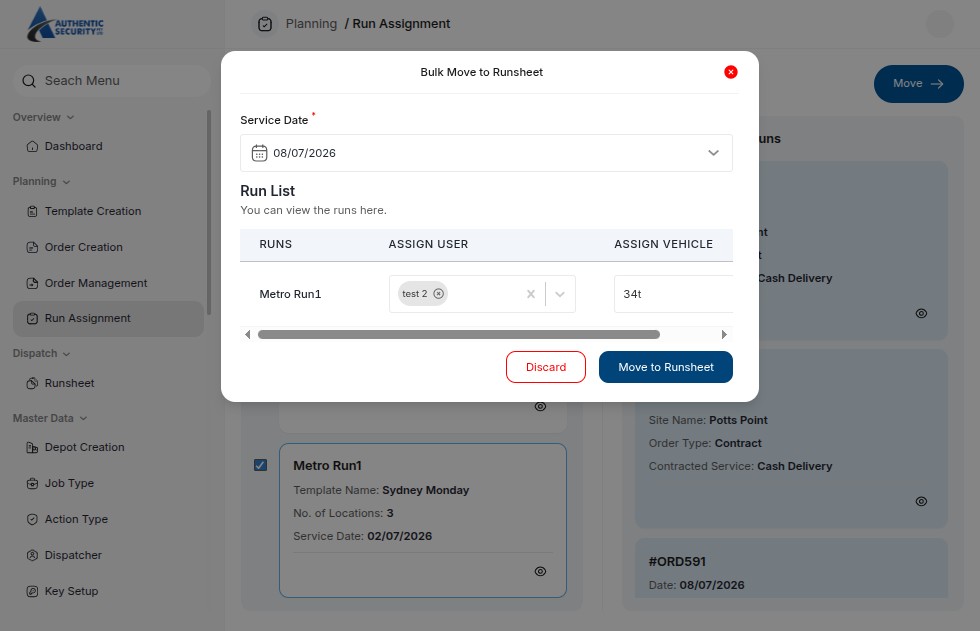
Step 5: Create the Runsheet
Move the run to a Runsheet and assign the service date, crew, and vehicle.
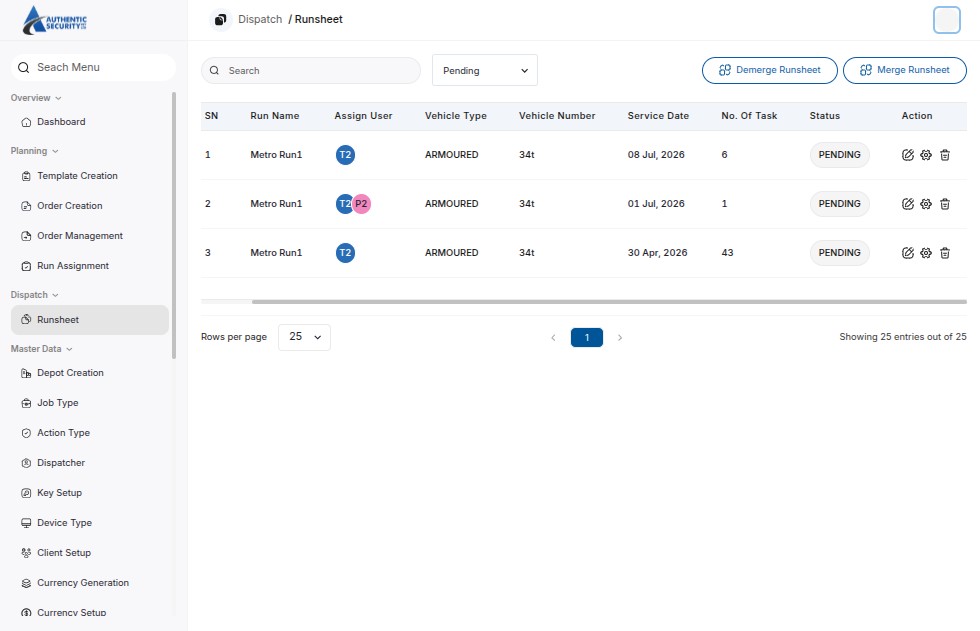
Step 6: Review the Runsheet
Review the newly created runsheet to confirm all details are correct.
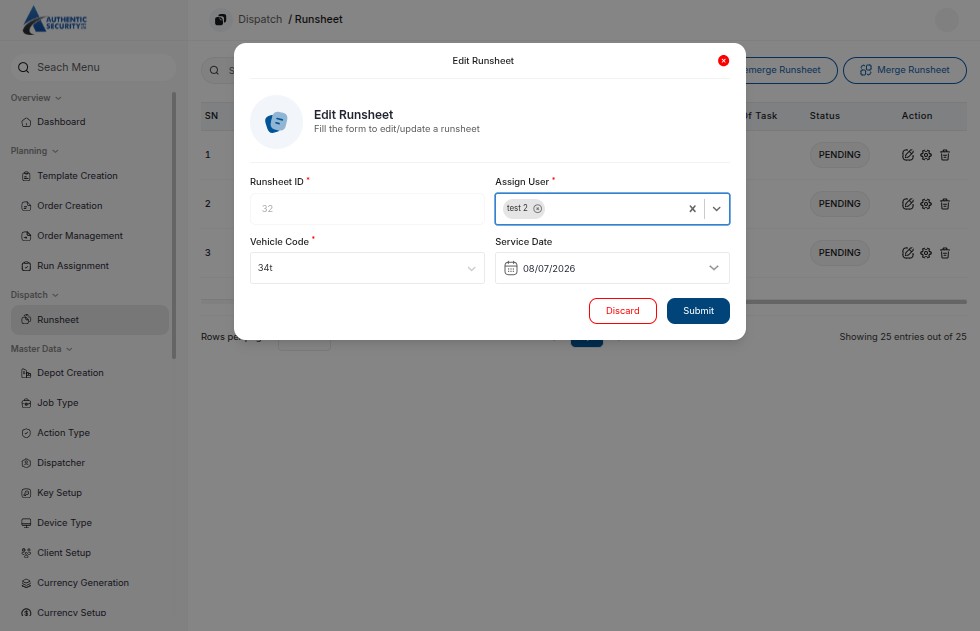
Step 7: Edit the Run (If Needed)
Edit the run if any details need to change.
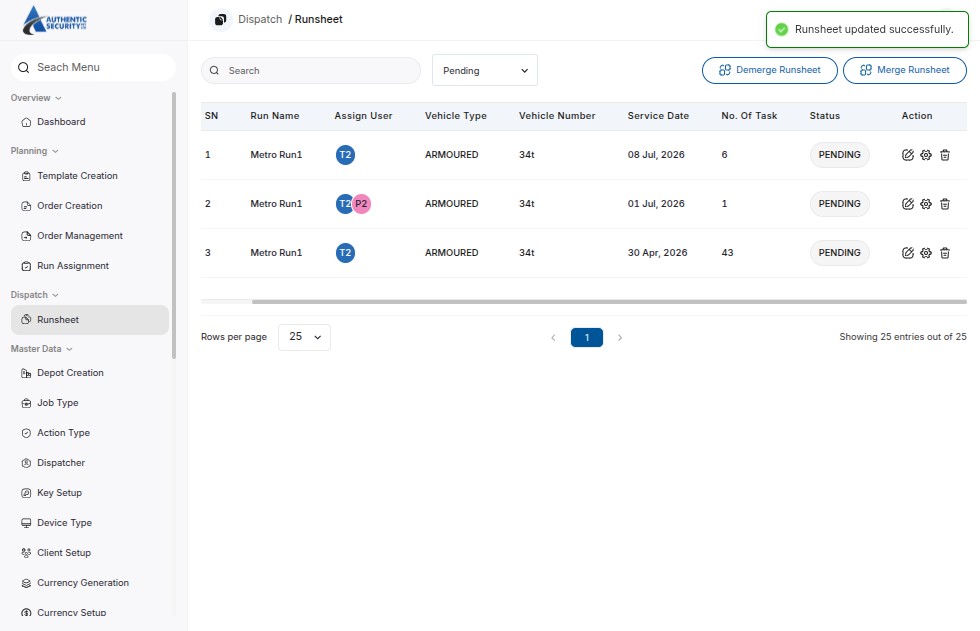
Step 8: Open the Order Status
Click the settings icon to open the order's status.
Step 9: Review the Order Status
Review the order's current status to confirm it's progressing correctly.
Summary
The Route Planner step assigns the order to a delivery crew and vehicle, completing the Order Change workflow from submission to delivery.