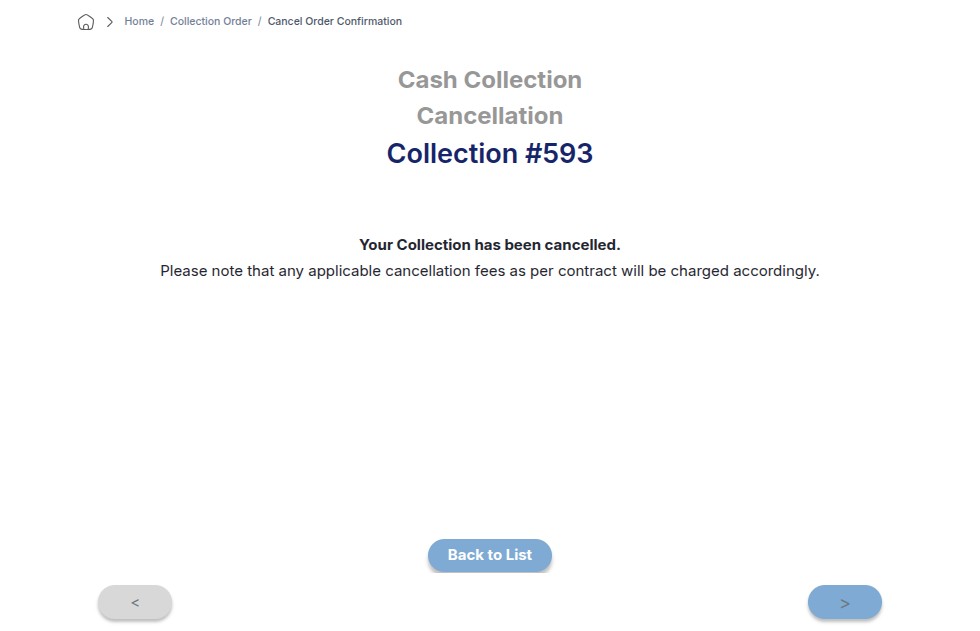
View or Cancel an Order Change
This section explains how a Customer can view an order's confirmation details, complete crew sign-off, or cancel an order after it has been submitted.
Step 1: Find the Order
Locate the order you just created (for example, order #593) in the order list.
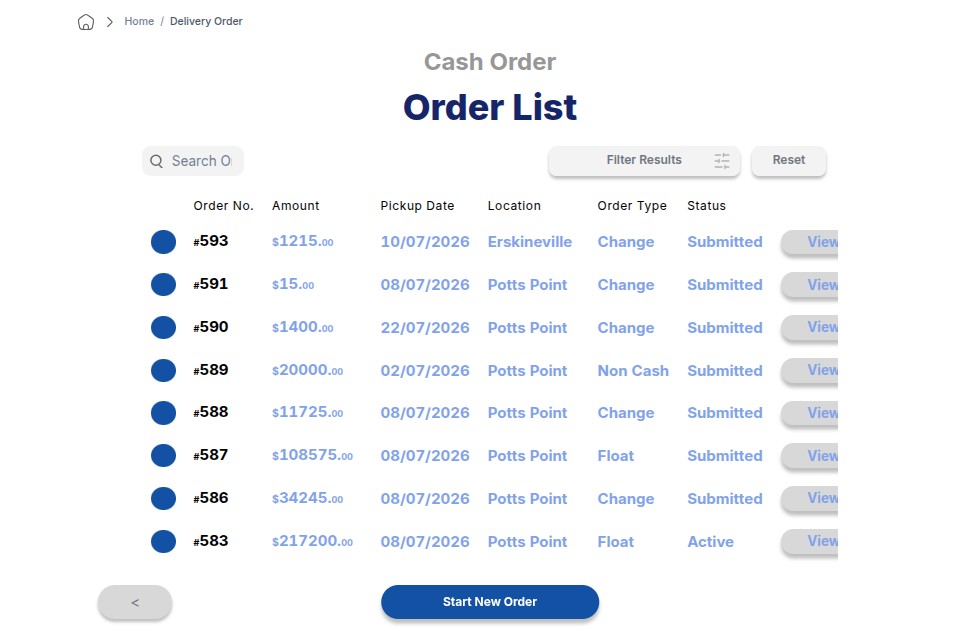
Step 2: Open the Order
Click View to open the order.
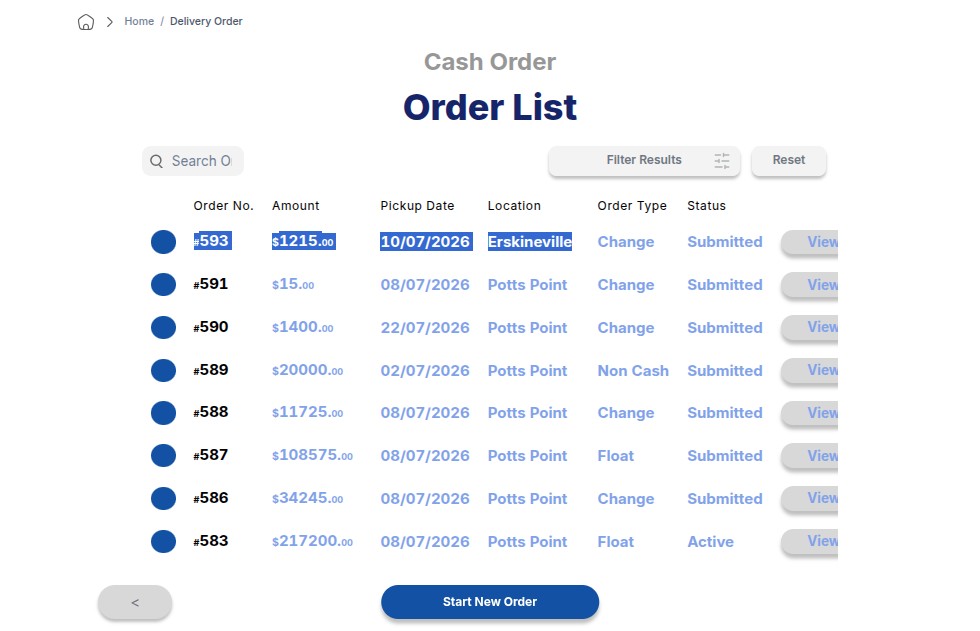
Step 3: Review the Confirmation Page
Check the order confirmation details.
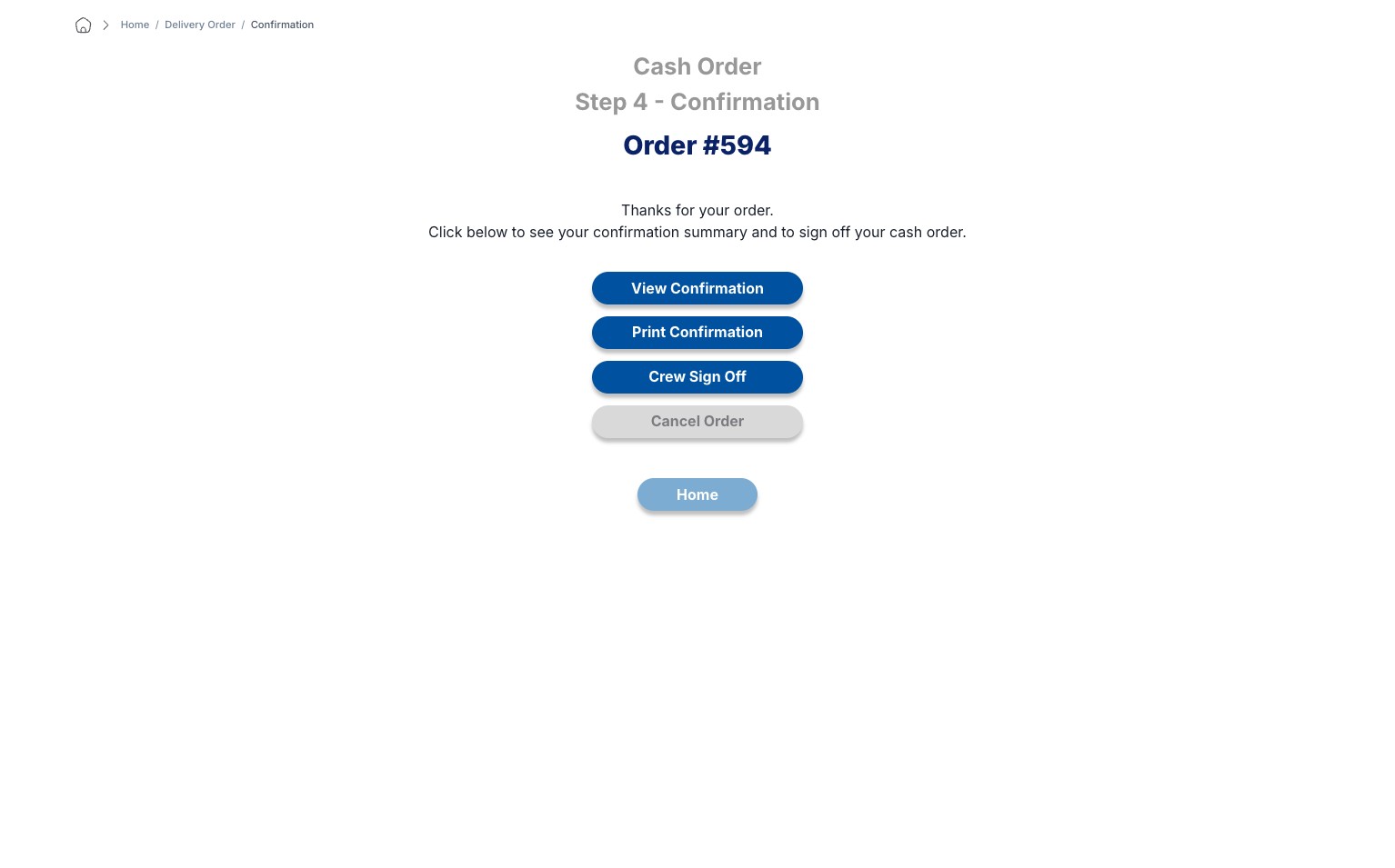
Step 4: Check the Confirmation Details
Review the full confirmation information shown on screen.
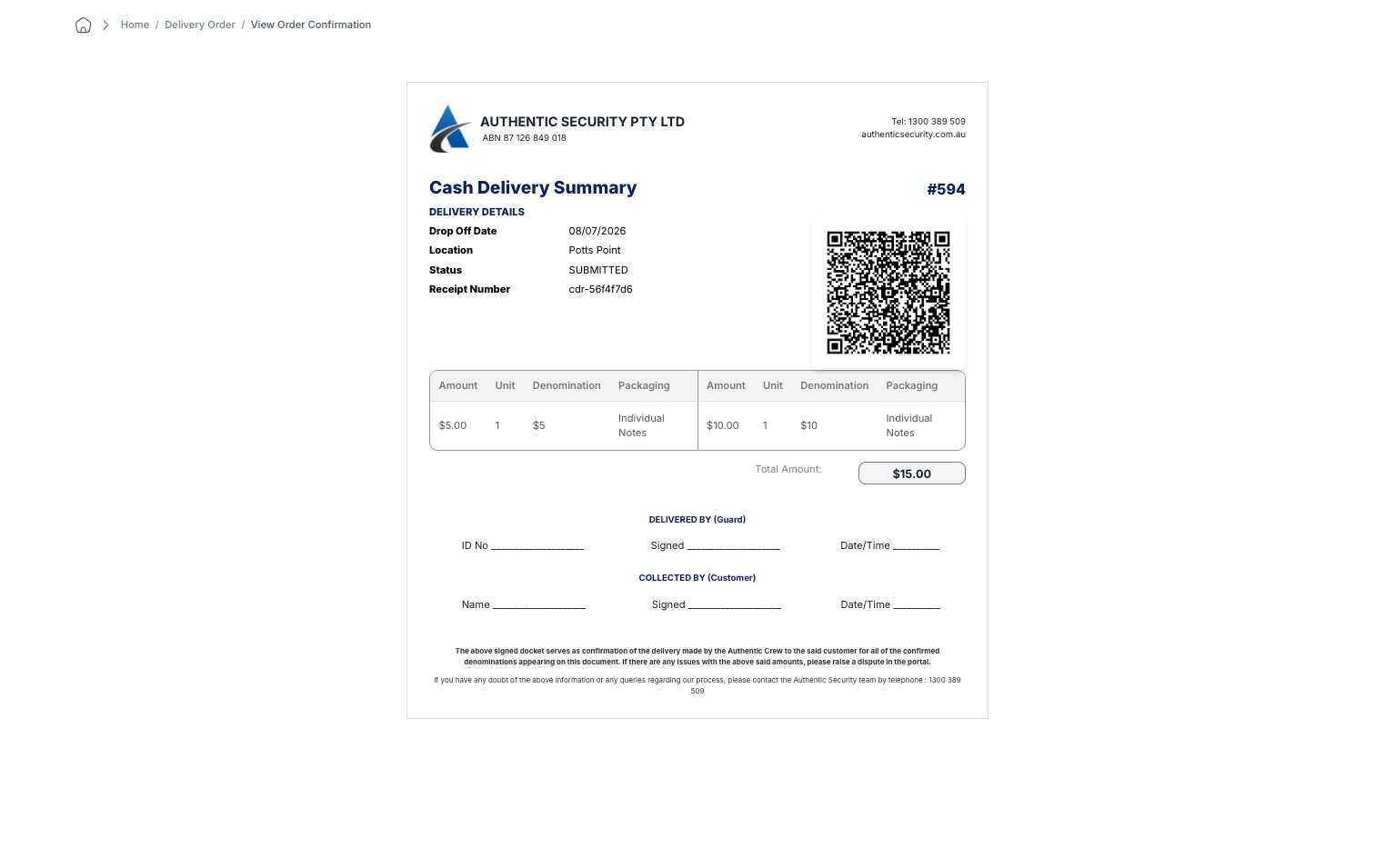
Step 5: Open Crew Sign Off
Click Crew Sign Off to begin the sign-off process.
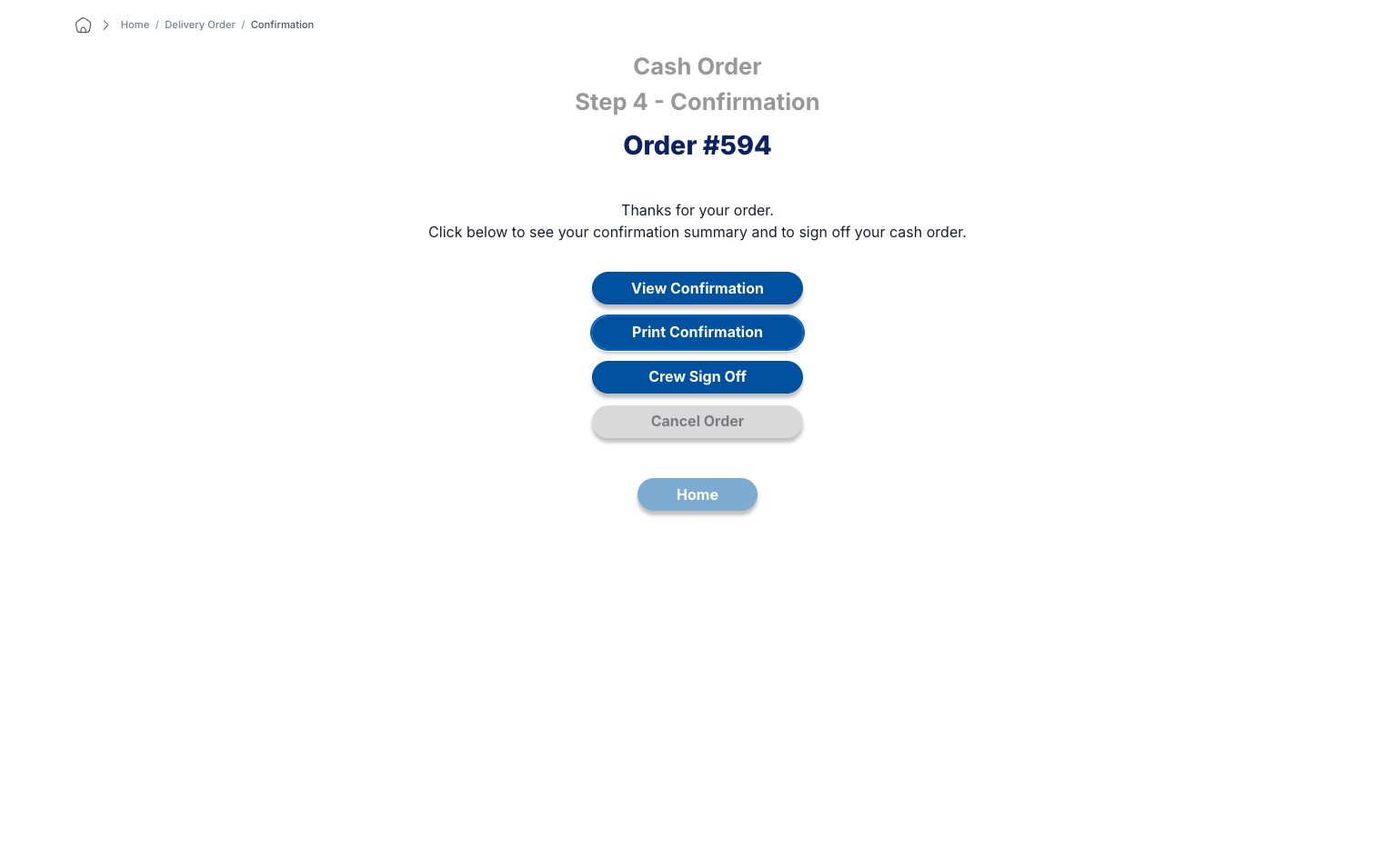
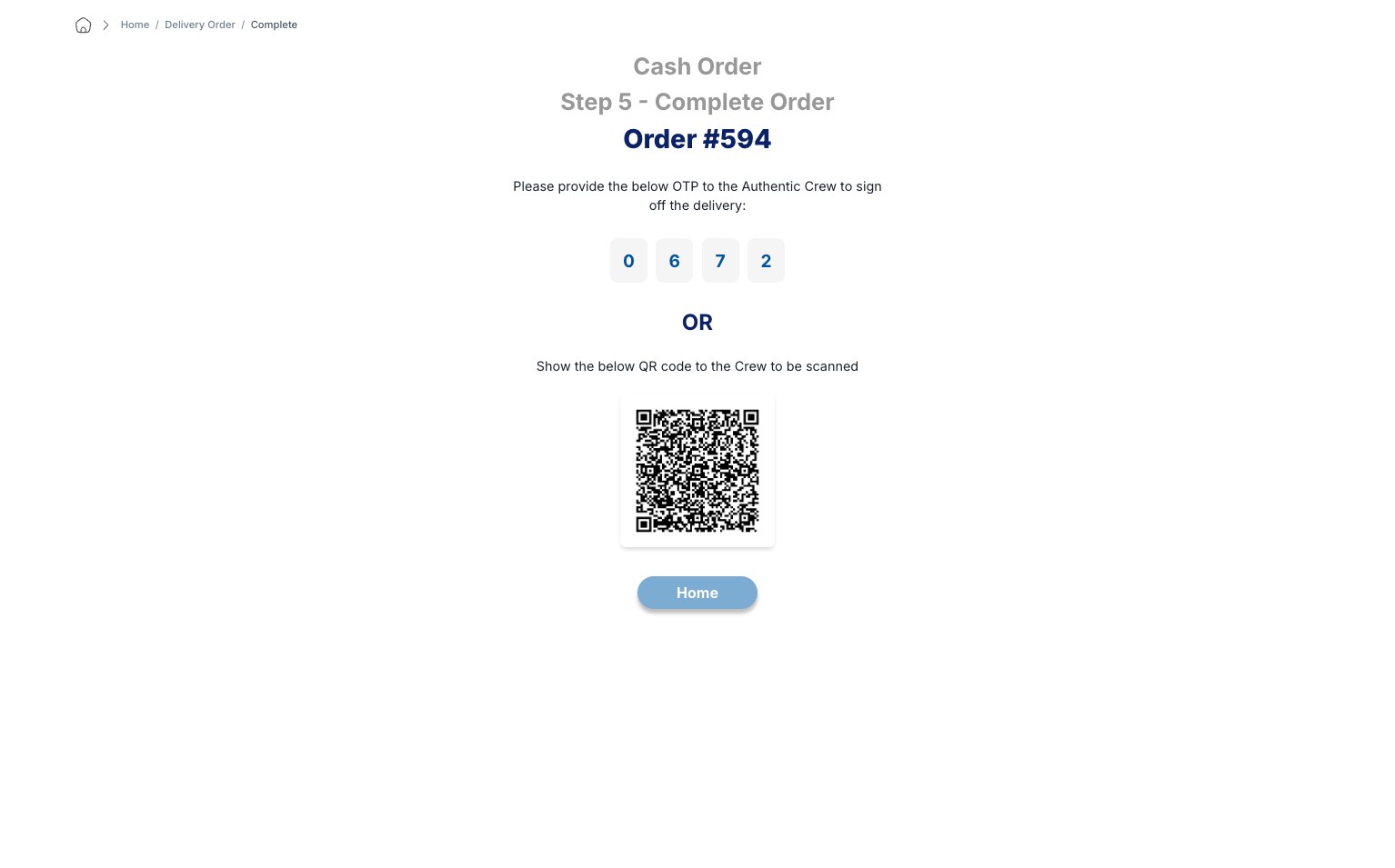
Step 6: Complete Crew Sign Off
Use the OTP or QR code shown on screen to complete crew sign-off.
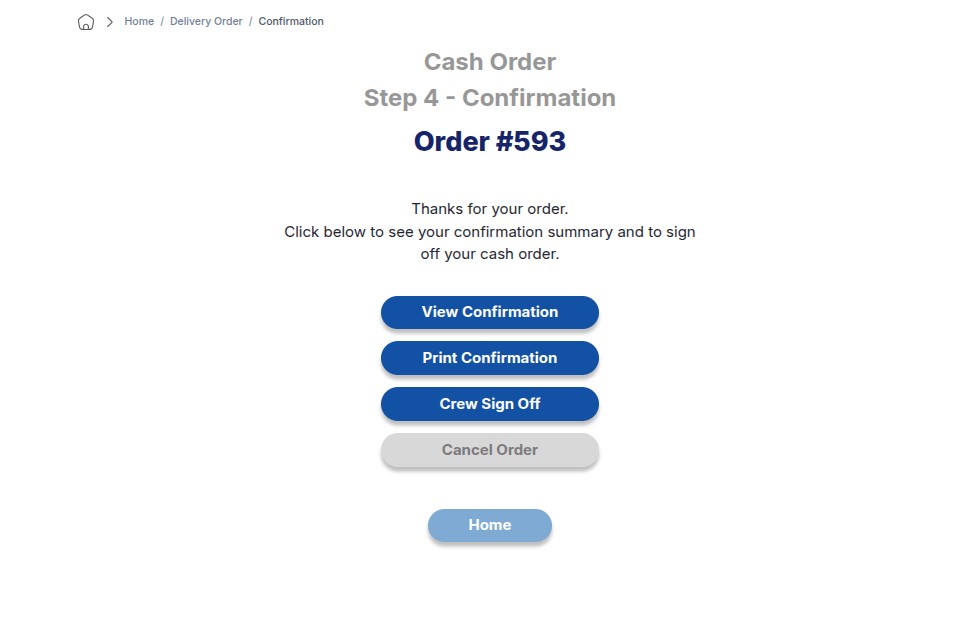
Step 7: Cancel the Order (If Needed)
Click Cancel Order if you need to cancel the request.
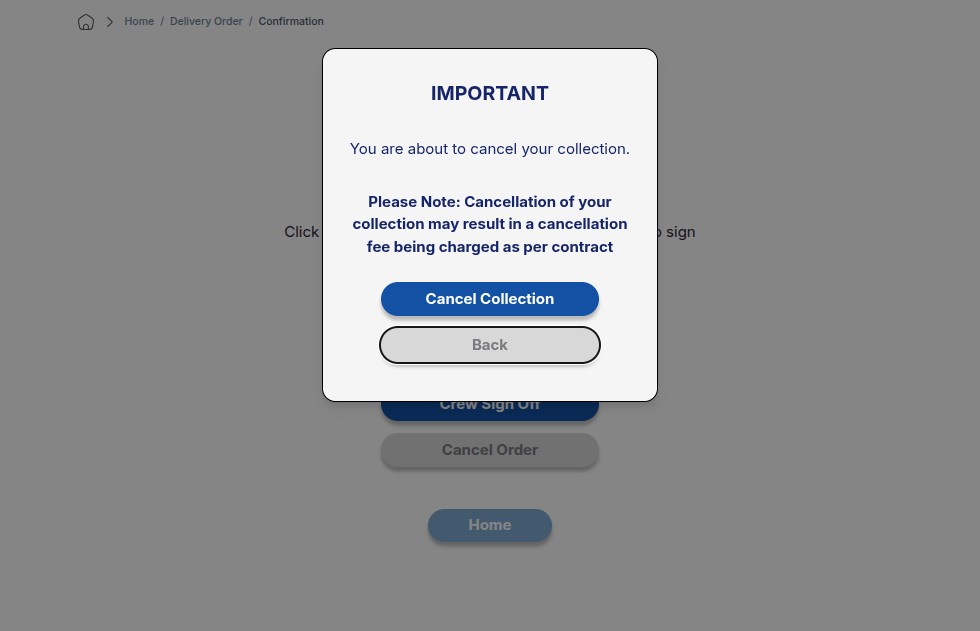
Step 8: Confirm Cancellation
danger
Cancelling an order cannot be undone. Make sure you're cancelling the correct order before confirming.
Confirm the cancellation.
Step 9: Return to the Order List
Go back to the order list to verify the order's status has updated.